

Reports are used to track activity and production progress on their daily, weekly, or monthly goals.
Reports designated as Dashboard Reports will be displayed on user home screens. Regular reports (not on dashboards) are available by going to Reporting > All Reports.
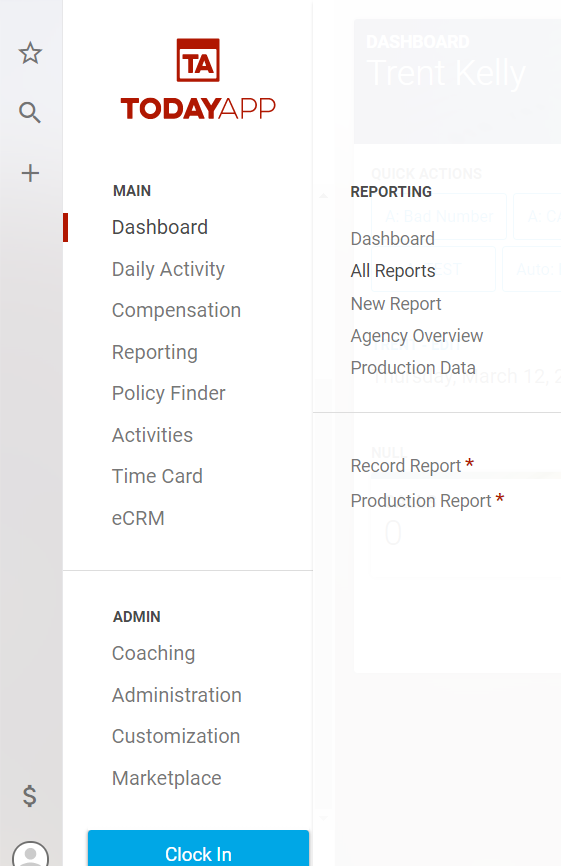
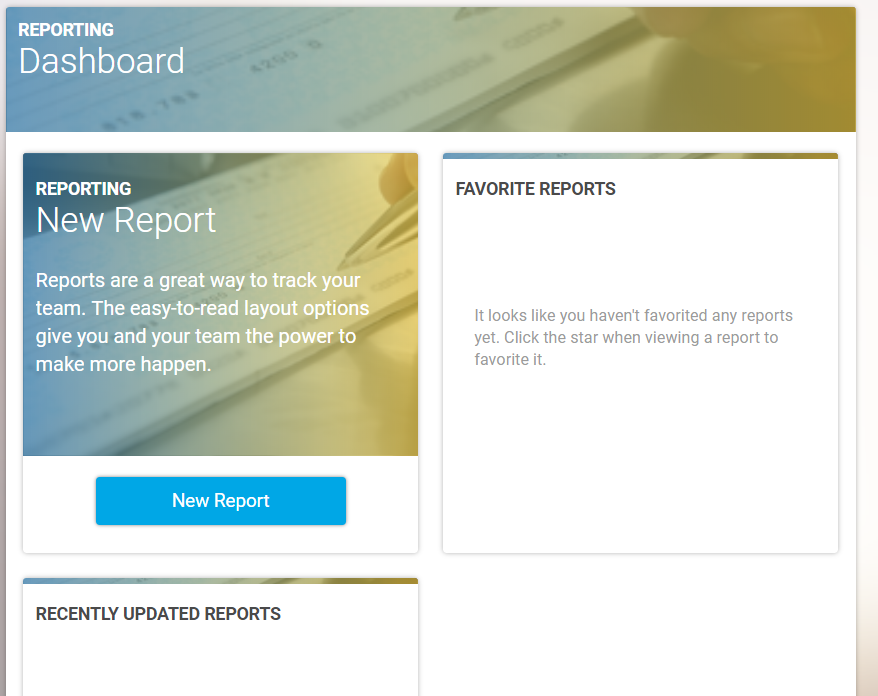
To create a new report, hover over "Reporting" OR "Dashboards" > New Report.
Note for New User profiles: New users added to the account will need to be added to dashboard reports or be added to existing ones in order for them to show on the work page. Dashboards with no reports will prompt agents/Admins with "Create a New Dashboard". You can also assign a user to an existing dashboard report by going to Reporting > All Reports > select the report to open it > select the 3 dots in the top right > Edit, then select the user under Assign Users > Save.
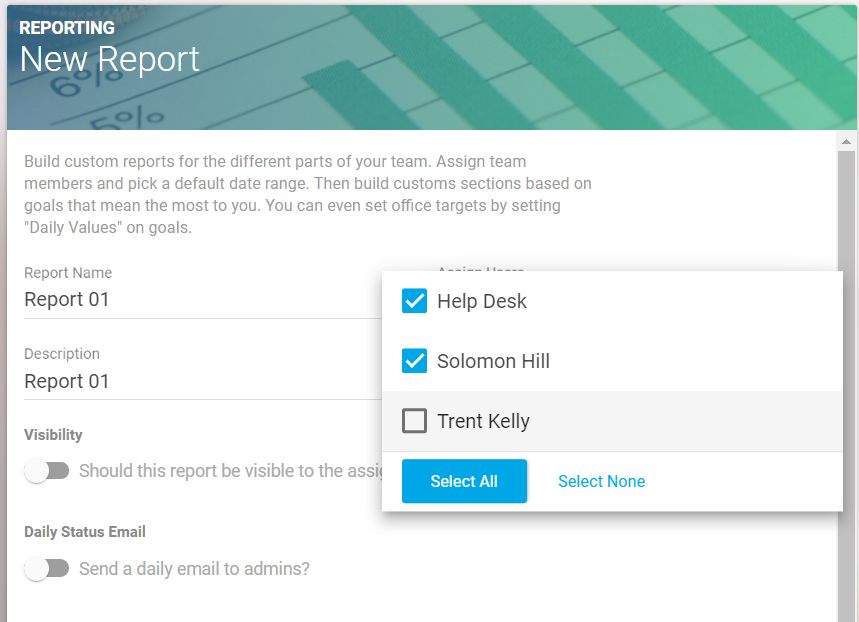
Enter the report name and description, and select which users to track in the report from the dropdown menu.
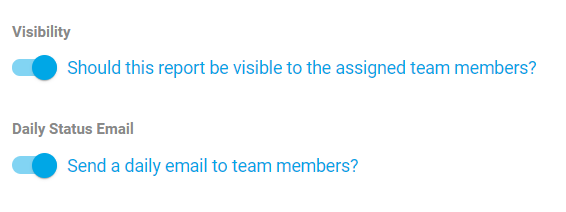
Select the visibility of the report, and whether a daily email for the report will be sent out to administrators.
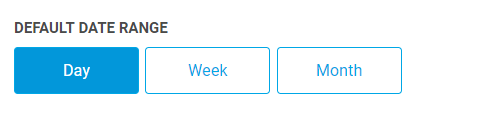
Next, select whether you want the report to track daily, weekly or monthly.
Then create a section name, and search for the goals you want to add to the section from the list on the right.
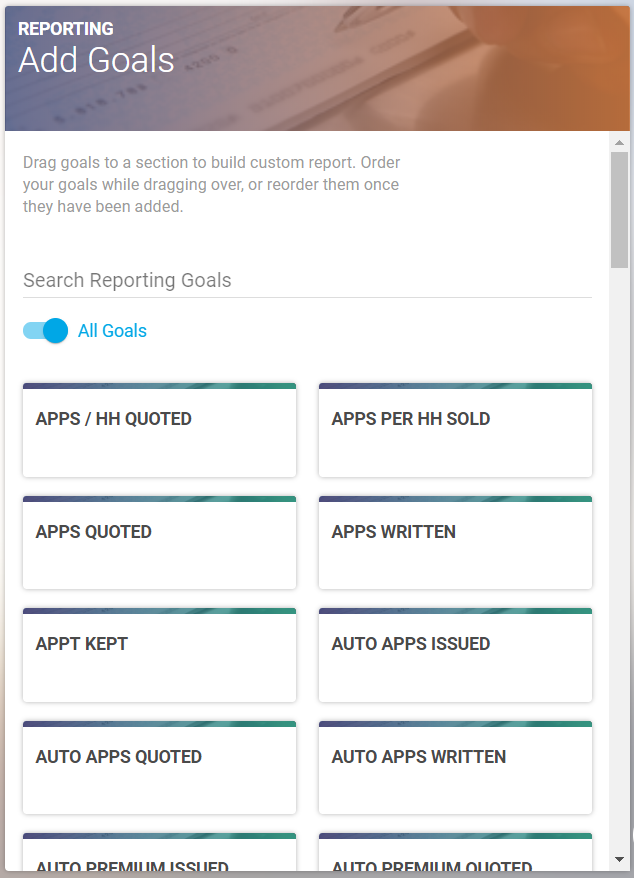
When you find the correct goal, drag and drop it into the report.
Then, select "Set Daily/Weekly/Monthly Values" to enter the target number for each category.
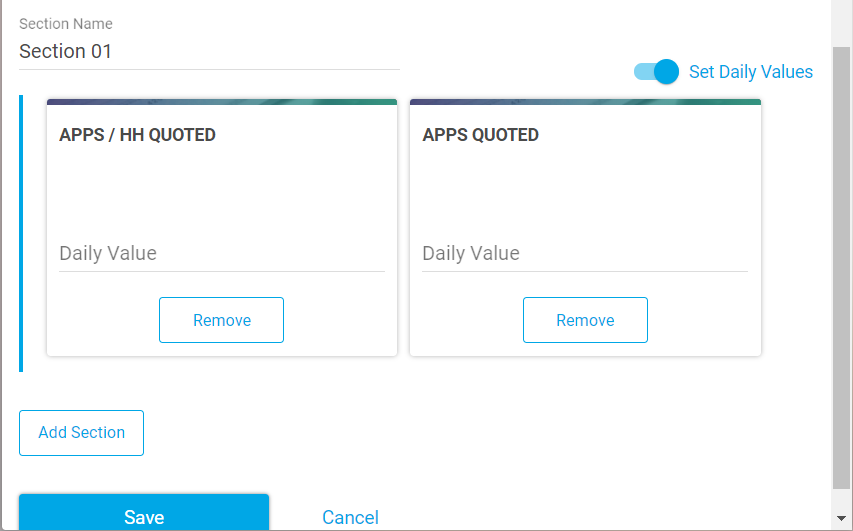
Add another section to the report, or scroll to the bottom and hit “Save.”
EDITING
Reports and dashboard reports can be edited by going to Reporting > All Reports > select the report open it > select the 3 dots in the top right > Edit.
On dashboards, there is a shortcut to the editing page accessible by selecting "Edit" next to the dashboard report title in blue.