

From the main menu under the Sales & Service tab you will want to click the "Inbound Sales" dropdown, then select the script you want to view.
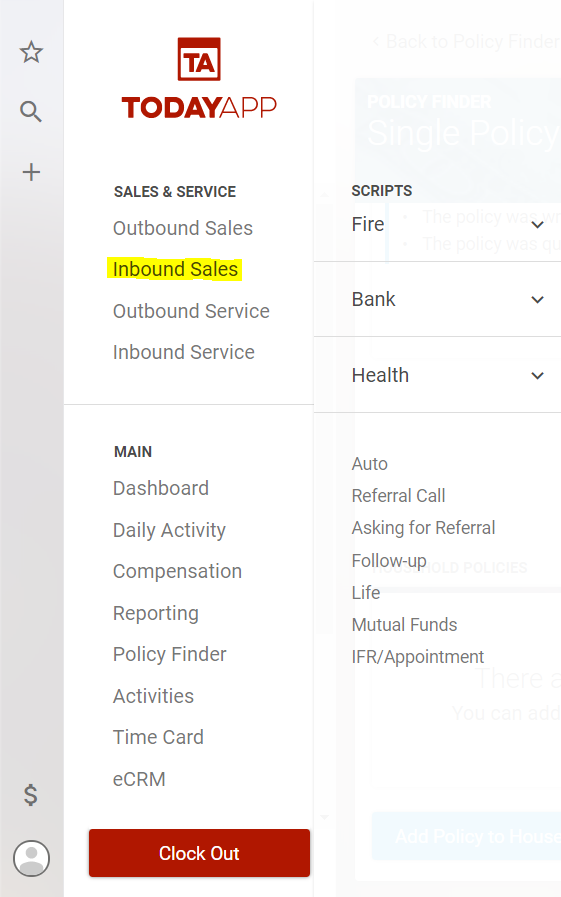
In this example we will be logging an "Auto Sale", so we will want to click the "Auto" option. This should result in the following page, filled with scripts for you to prompt a potential client.
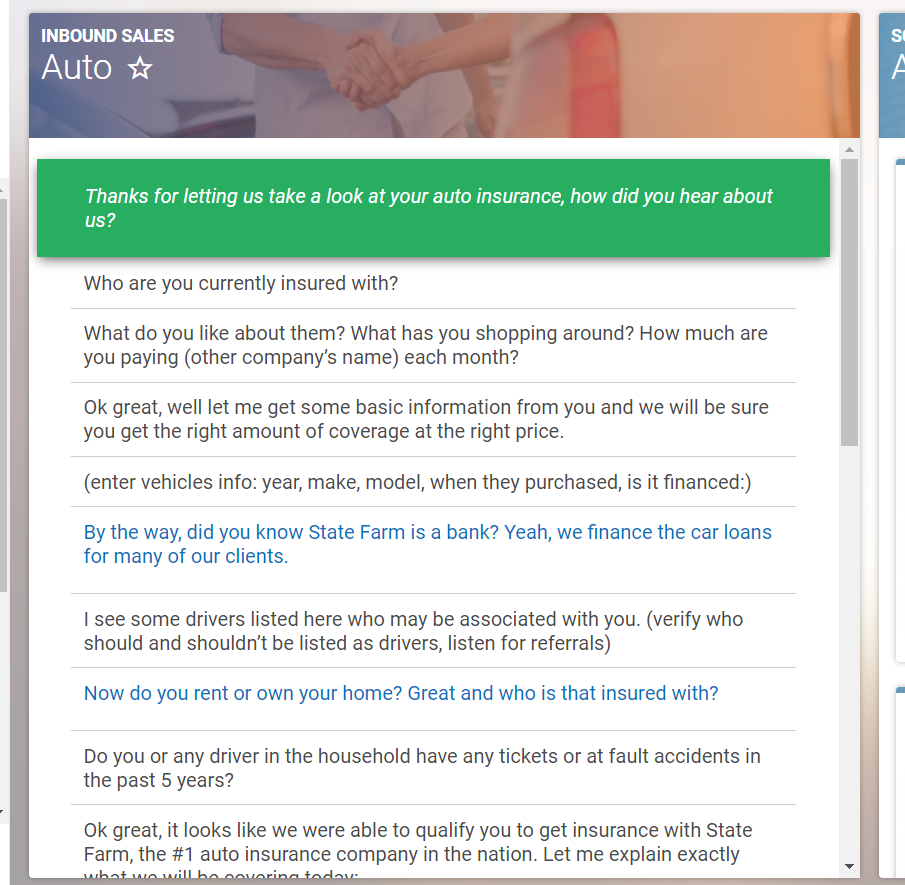
Use these scripts to keep the conversation flowing and to respond to the potential client's questions. While using the scripts you may come across some that have blue text, these sections help you to pivot to a new topic should the client take interest in what you mention from the blue text.
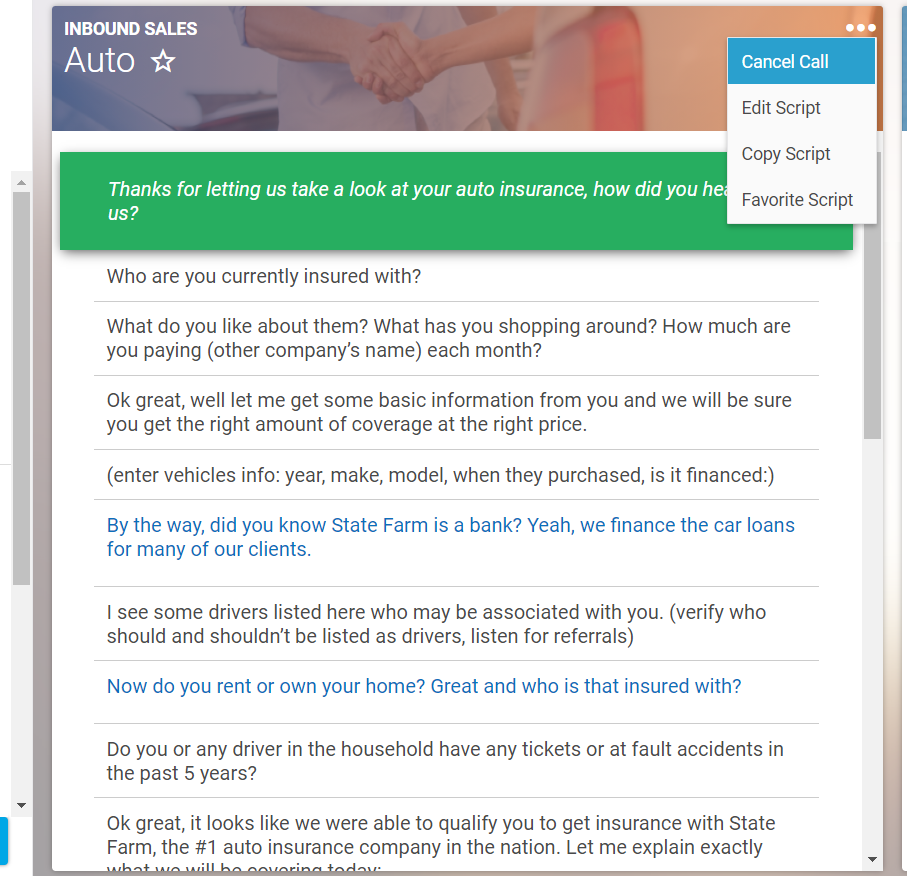
If something comes up and you need to cancel the call you will want to click on 3 dots in the top right-hand corner and select "Cancel Call". This will navigate you back to the dashboard. Otherwise, once you are ready to complete the call, click on an option in the Action window on the right of the script.
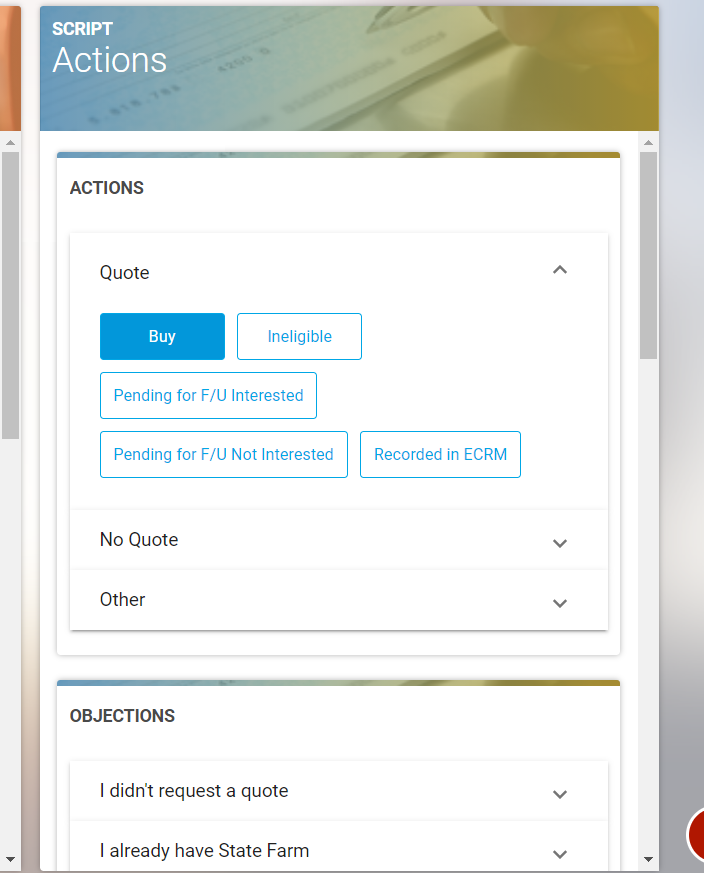
To the right of the scripts, there are a series of tabs with various available responses for you to select from based on how the call went. If the client was interested in a quote you will want to select the "Quote" tab and choose the appropriate response.
Each of these responses will load a form for you to complete with the client's information. After you have completed filling out the form you will need to scroll to the bottom of the form and click "Completed Quote".
If the client was not interested in a quote you will want to select the "No Quote" tab and choose the appropriate response. Each of these responses will load a form asking you to confirm to complete the call. If it is correct you will want to click "Confirm."
If the client was interested in setting up an appointment or had a request that you were unable to complete you will want to select the "Other" tab and choose the appropriate response. The "Set Appointment" response will spawn a form asking you to confirm to complete the call. If it is correct you will want to click "confirm." The "Miscellaneous" response will spawn a form asking you to write some notes about the call. Once you are done writing a note you will want to select "confirm".