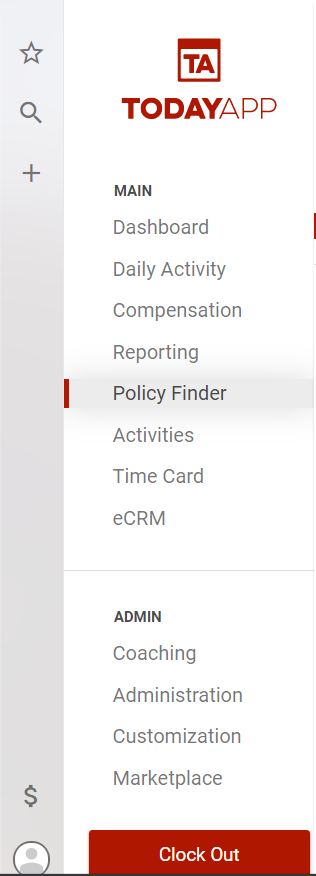
If you want to find a policy to change the status to canceled, start from the main menu and select Policy Finder.
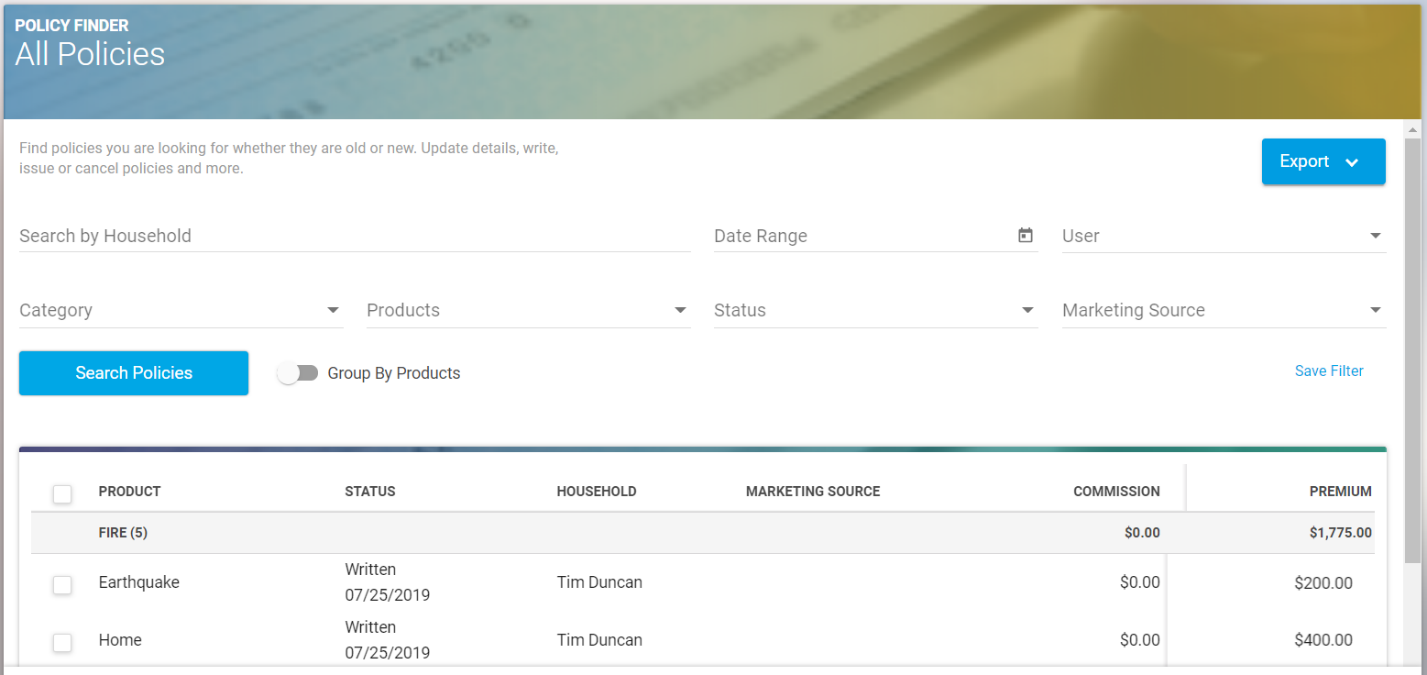
In the Policy Finder, you can search for a policy by household name, or you can use the other filters to find the policy you would like to change.
Once you find the policy that needs to be updated, click into the policy from the list.
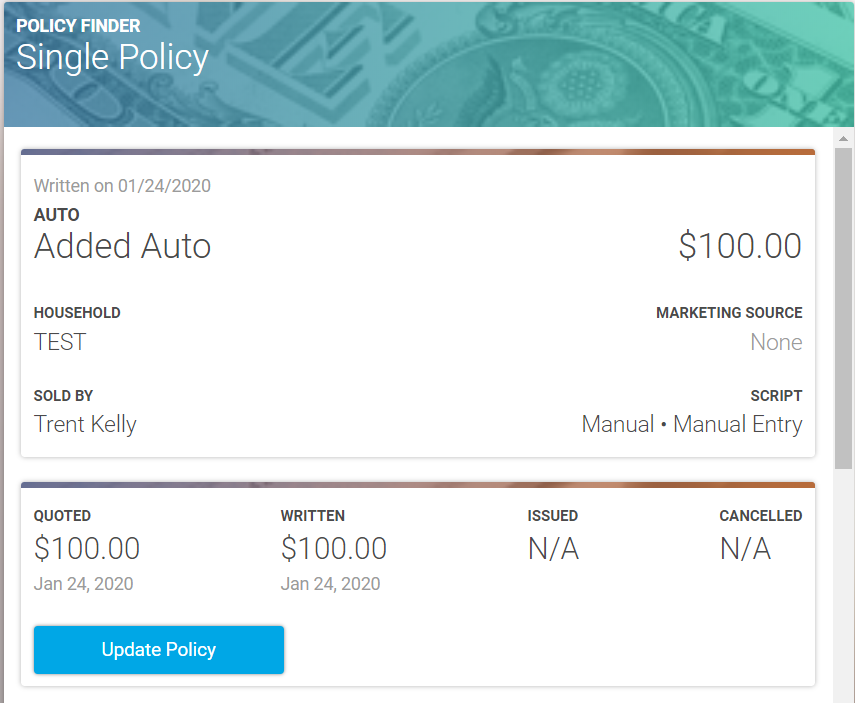
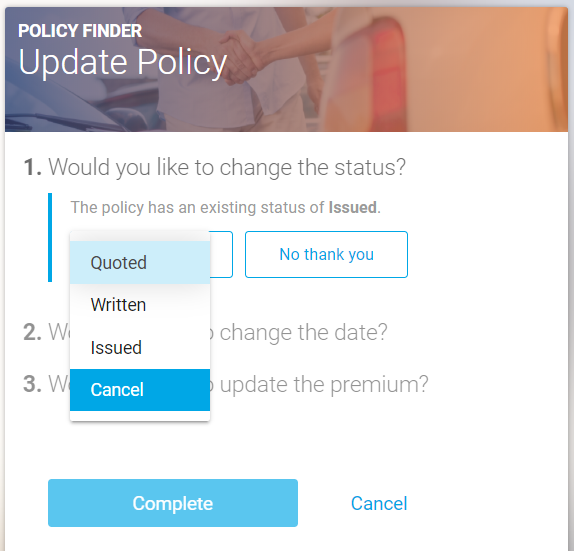
You will see a box that says Update Policy in blue, which you can select. You will then be prompted to follow three steps to update the status to Cancelled.
Note: The policy must be in Issued status in order to be changed to Canceled.
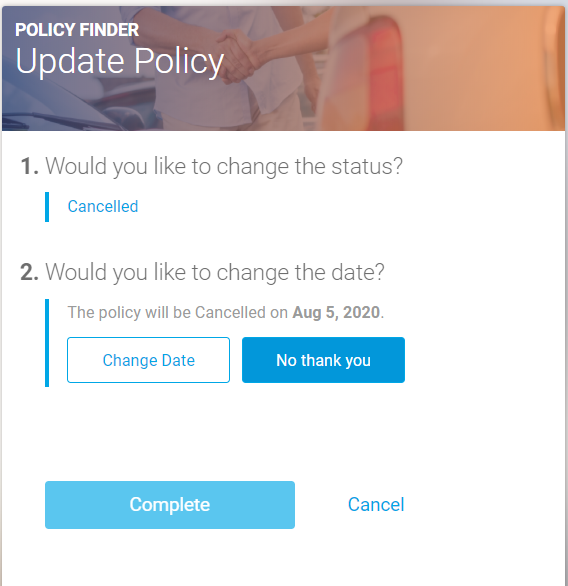
Once you see the below message the policy has been successfully canceled.

The chargeback will then show on the pay report for the month it was canceled in.
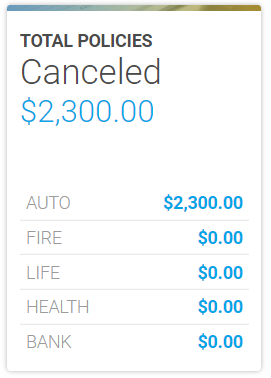
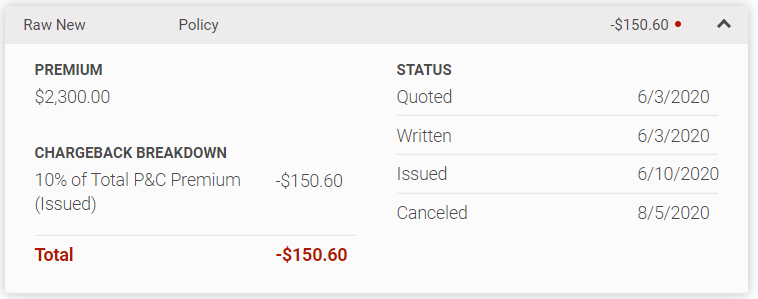
On the third step, and once the compensation report is released for the team member to view, the chargeback amount and breakdown will show on the policy list and breakdown with the negative chargeback amount.