

To add a new user, start by going to Administration>New User from the main menu.
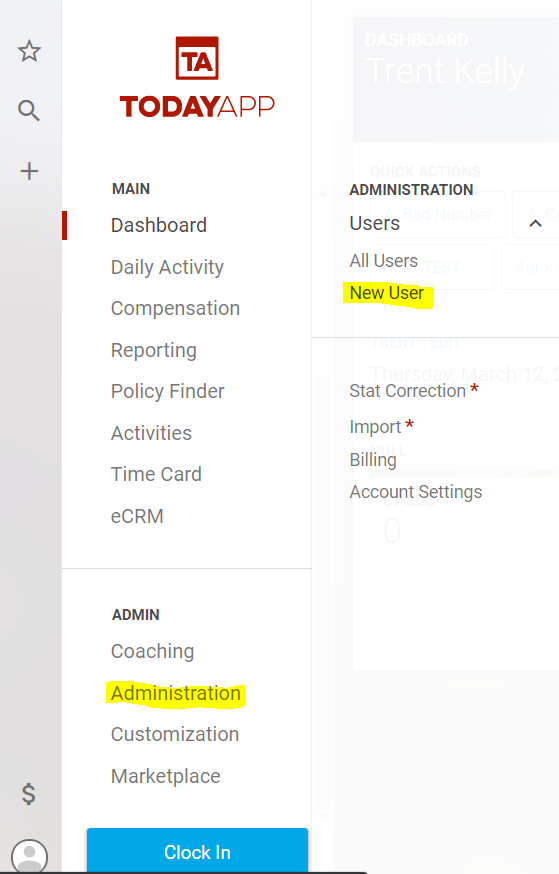
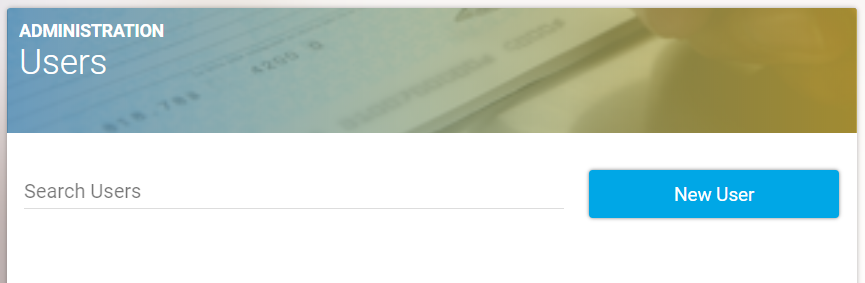
Next select “New User,” and you will be redirected to a New User page.
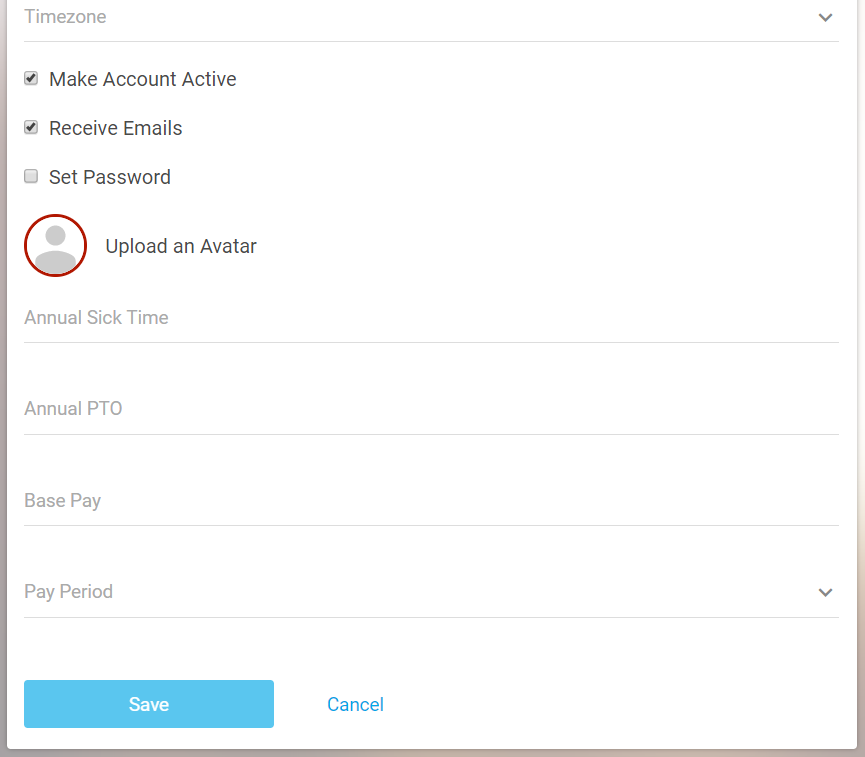
Enter the information into the given fields for the new user and click the “Save” button to submit the form. This will create the new user and redirect you back to User Management. If you are not seeing the user you just added, try refreshing the page.
After saving the team member's account, you can increase their permissions using the Roles. "Issuer" will allow the team member to issue their own policies. "Manager" allows the team member to view and edit all team members' policies in the office. "Compensation" allows team members to view and edit the compensation plans as well as run the compensation report. "Admin" will give the team member permission to do anything the agent can do with the exception of viewing the billing screen.
****For agents who have integrated TodayApp to ECRM, new team members will need to be connected to ECRM in order for their opportunities to come through. To connect a team member, select "ECRM Users" -> Select Their email -> Save.****