


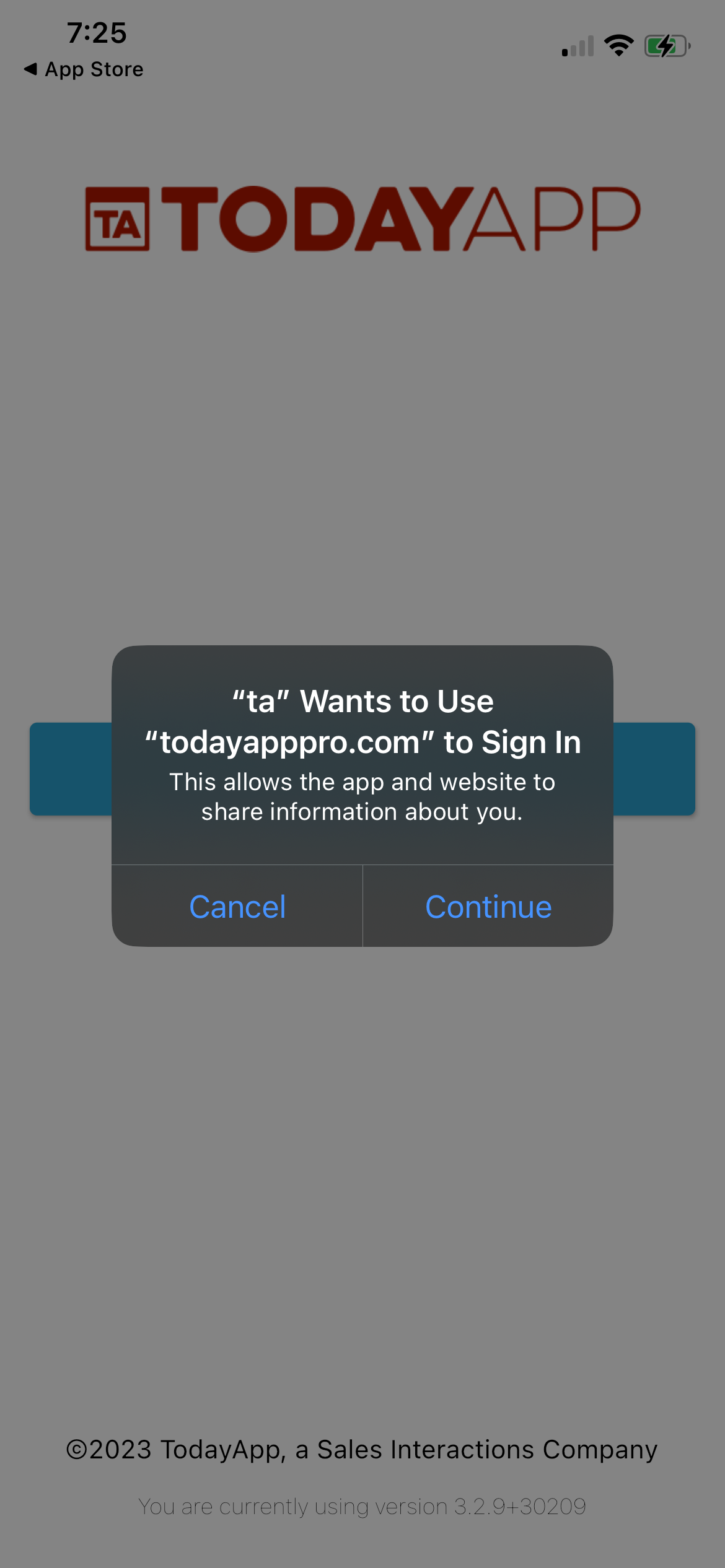
To log in to the mobile app, you must be logged into your desktop app on your computer. When you go to log in to the mobile app, you will need to click "Continue" when the pop-up displayed below shows up on your phone.
Once you click "Continue", a 12-digit code will display on your screen. You will need to take that code and then move to your desktop app on your computer and click the button that looks like a phone with a lock on it in the bottom left side of your screen. Then, you will need to type in the 12-digit code with the dashes and click "Verify". Once you complete this, your phone will be signed into the app.
If you need any additional support with the mobile app, do not hesitate to reach out to us at support@todayapp.com.