

NOTE: For team members to complete the steps below, they will need the role of Issuer assigned to their user profile. This can be done by the agent/Admin. The user will have to log out and then back in for the change to register. Without the Issuer role assigned, the user will not have the option to Issue policies in TodayApp.
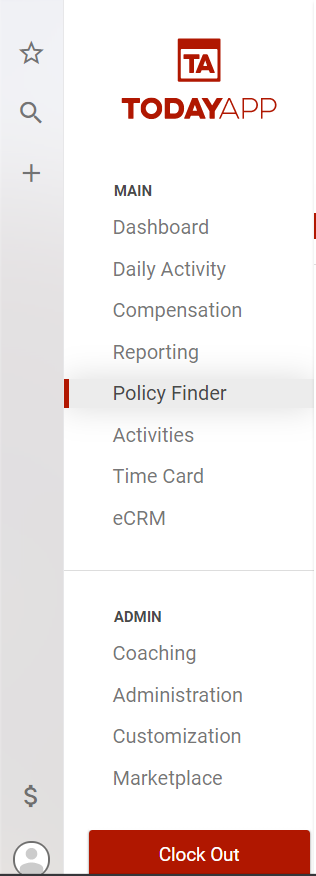
To update the stage for a manually entered policy to Issued, start in the Policy Finder.
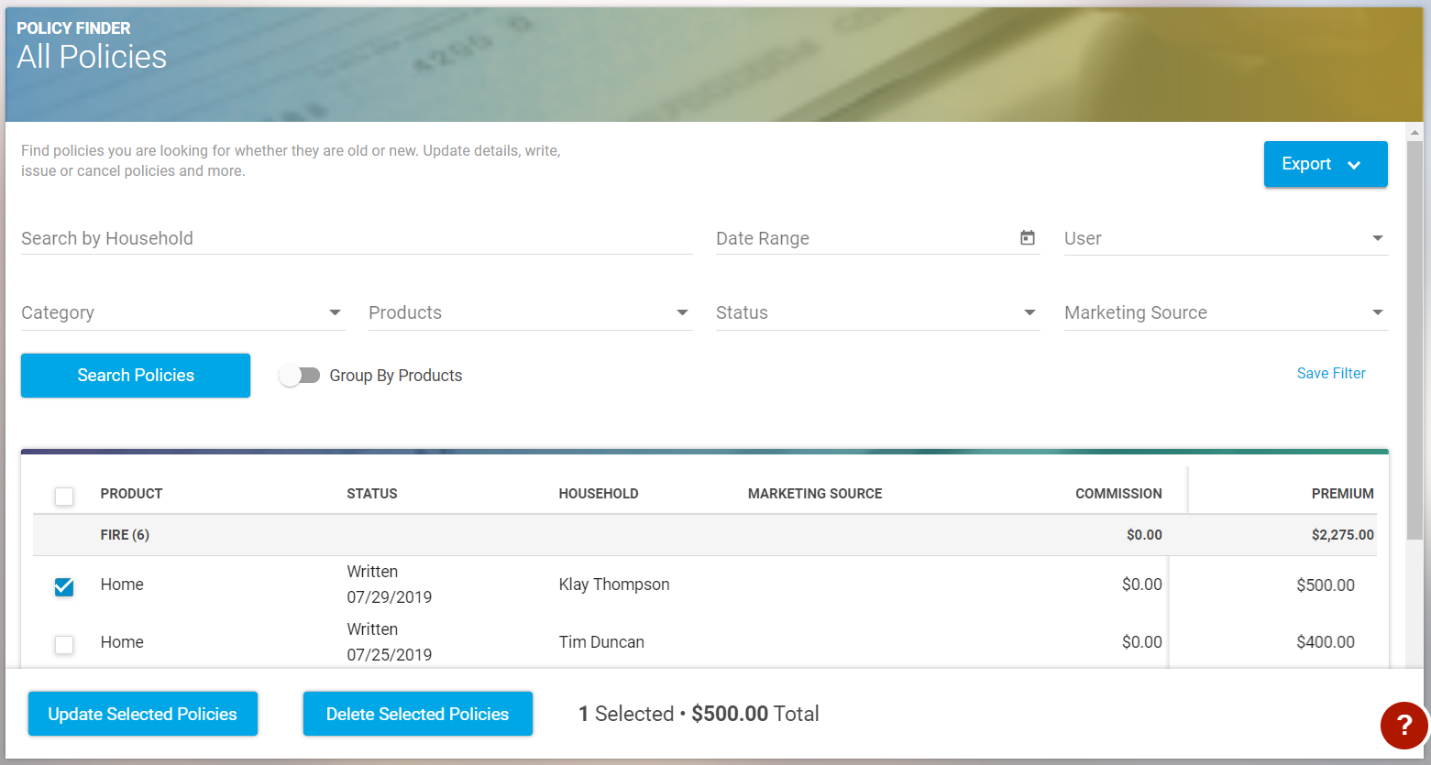
Next find the policy you would like to issue, and select it.
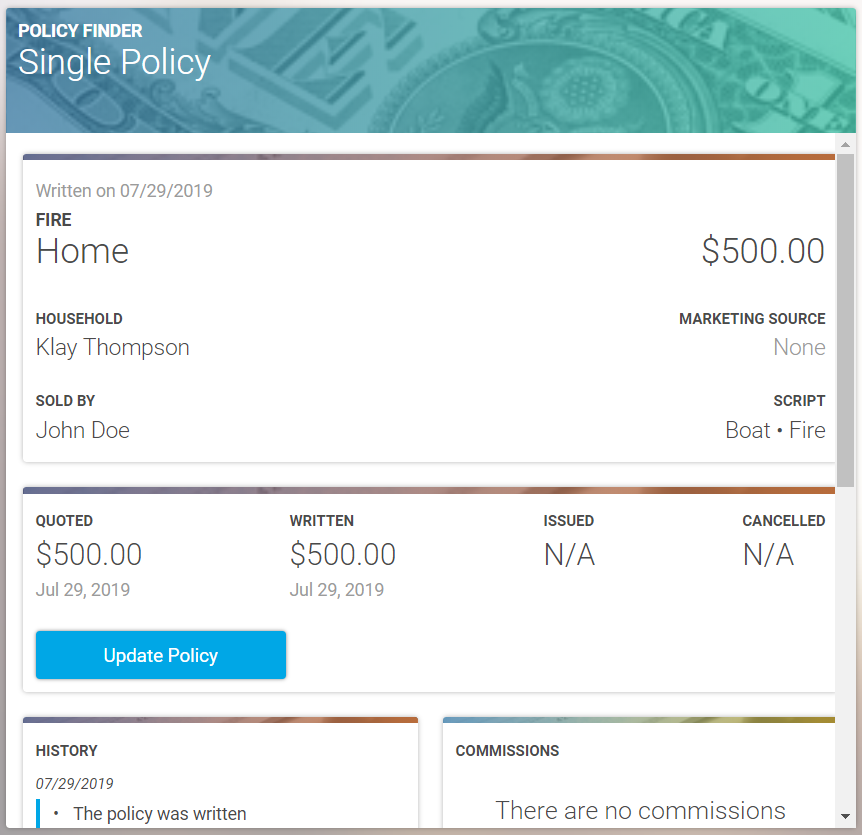
This will open the window for the policy, where you will select “Update Policy.”
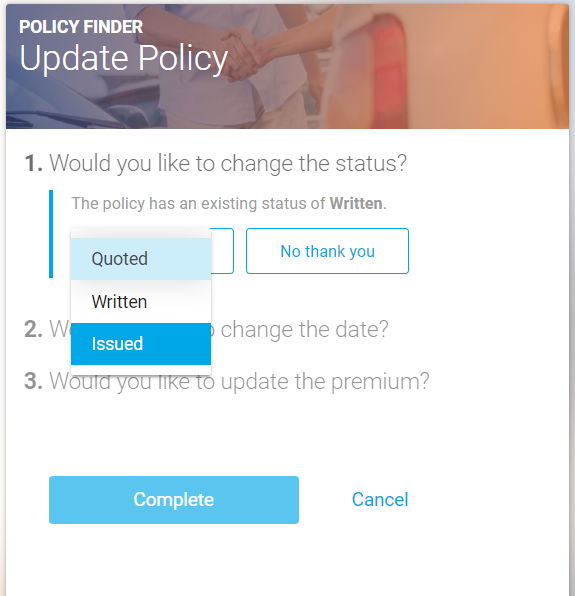
On the right-hand side, select “Change Status.”
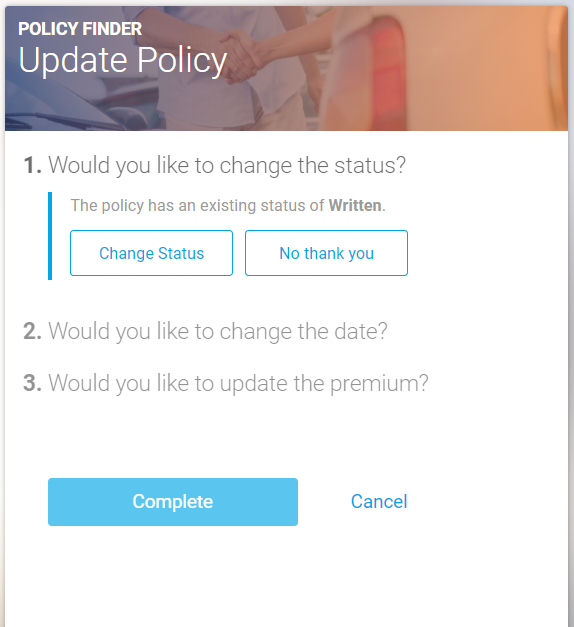
From the dropdown menu select “Issued.”
Change the date if necessary and update the premium if the price has changed.
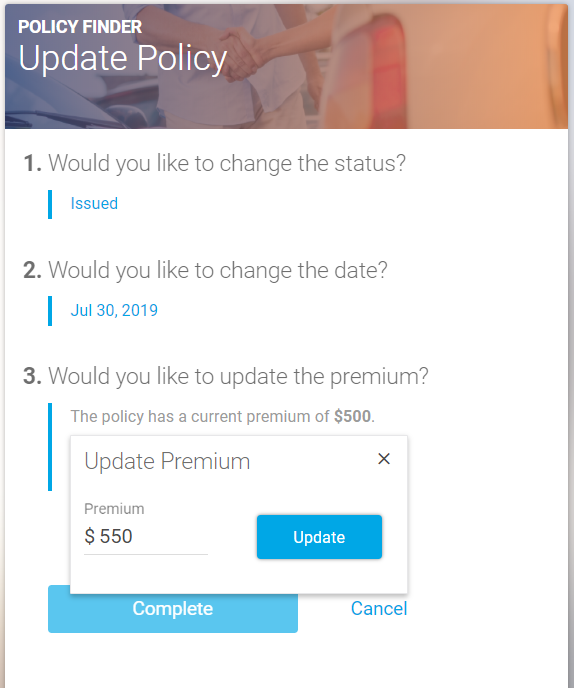
Once all fields have been updated, hit “Complete,” and a banner will pop up at the bottom of your screen letting you know the update was successful.
