

Quick Actions are similar to normal actions. The only difference is that quick actions help you to complete an action fast by bypassing the scripts and immediately opening the form for you to complete the action. Quick Actions are displayed on the dashboard, some examples of Quick Actions can be seen below.
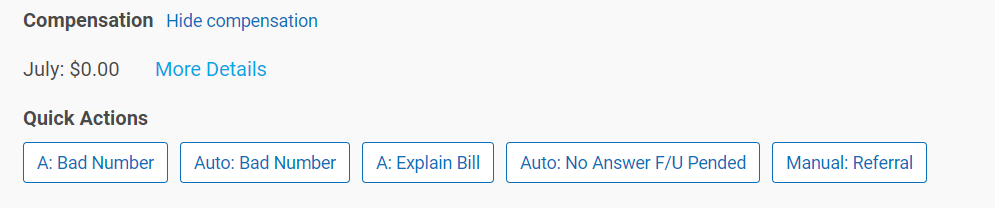
Most actions can be made into a quick action, If there is an action completion process you find yourself completing often speak with your account admin about having a quick action set up.
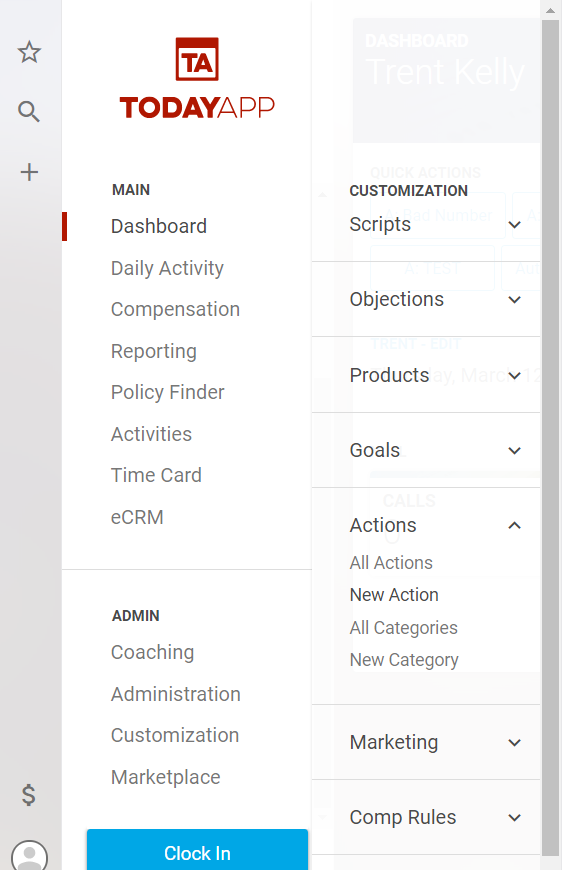
You can set up and manage your own quick actions. To find this, go to your main menu and select Customization>Actions>New Action.
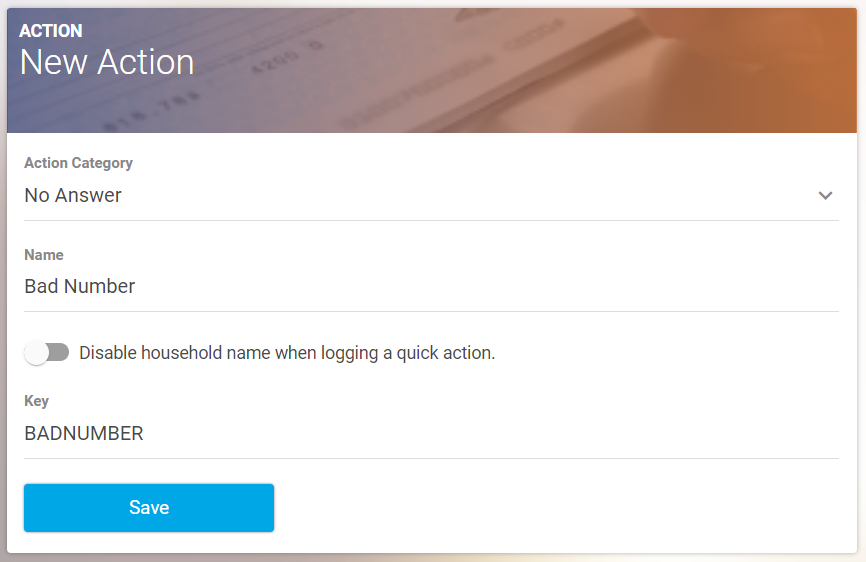
Then select the appropriate action category and name the action.
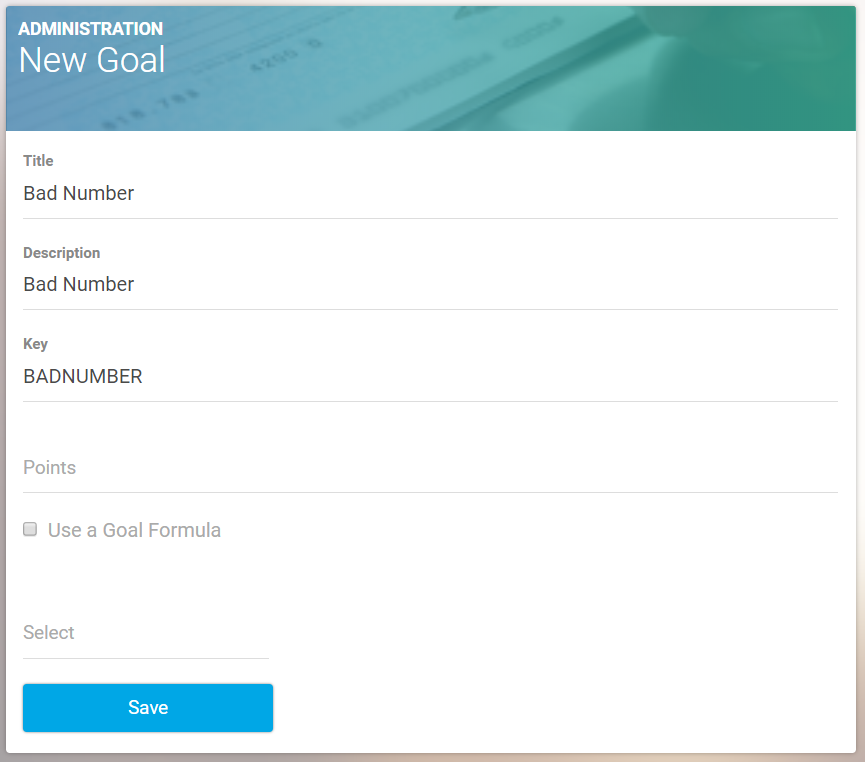
Next, to attach the action to a goal, select Customization>New Goal on the left-hand menu.
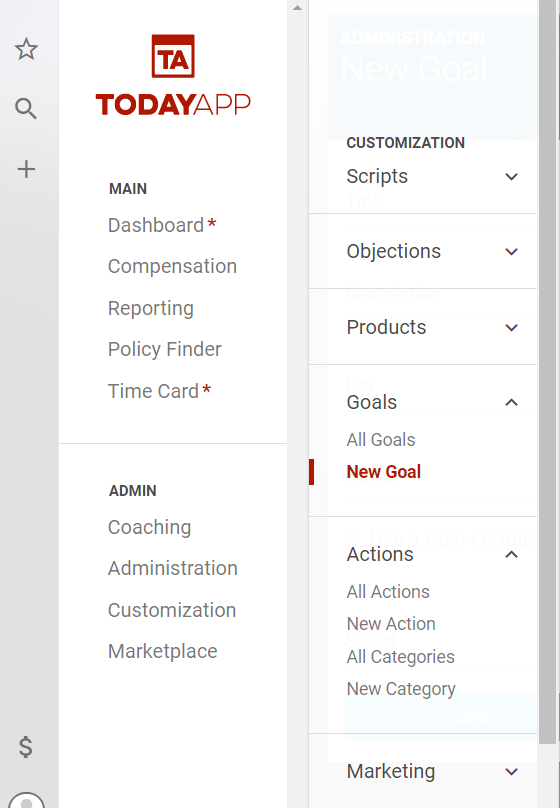
Name the goal the same as the action and assign the goal to users if needed.
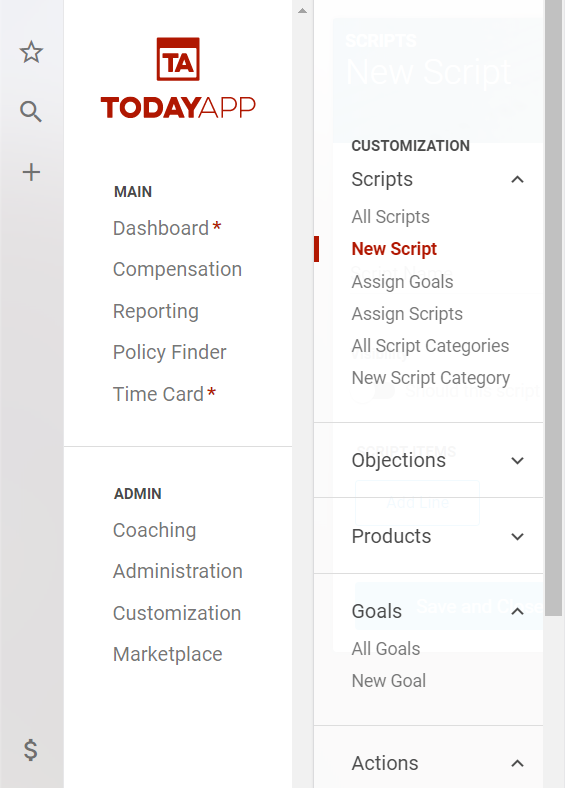
Then go to Customization>Scripts>New Script.
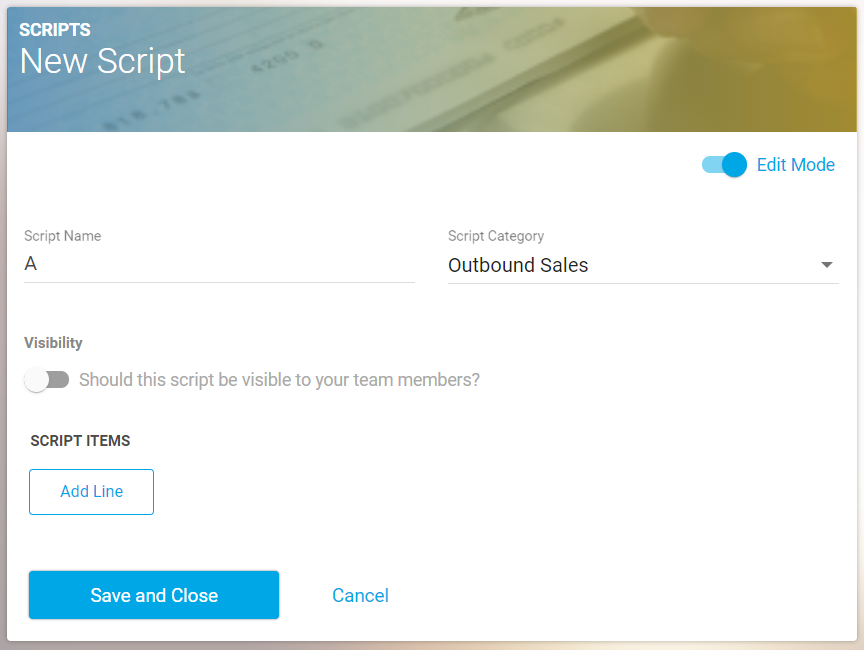
Name the script something short and simple, such as “A,” and select the script category.
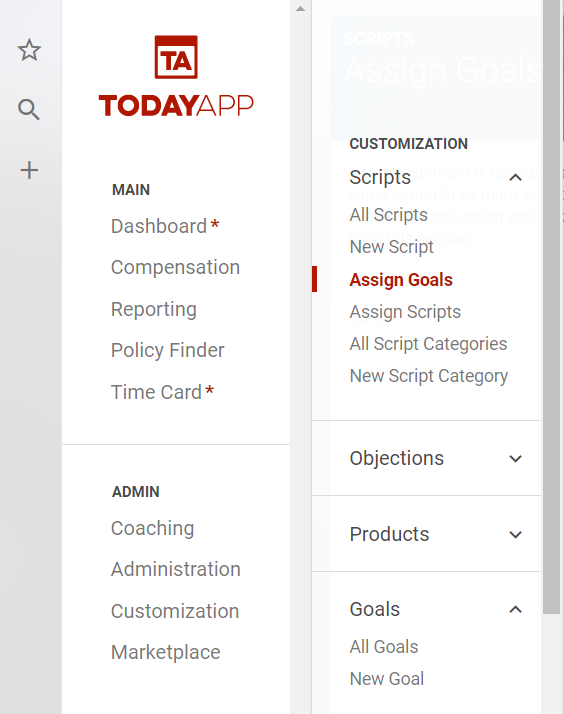
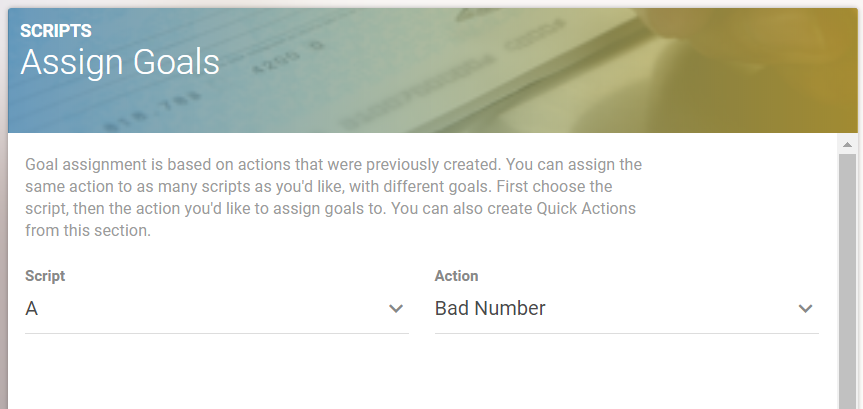
Then select Customization>Assign Goals and select the script and the action on that word track that you just created.
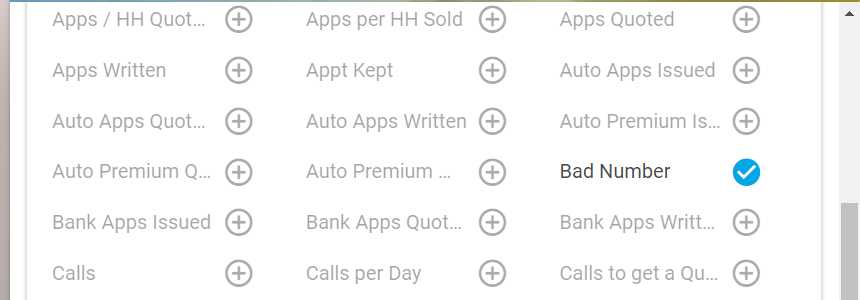
Assign the specific goal from the list by clicking it, showing a blue check mark.
Then go back to the top and select the box “make this action a quick action.”
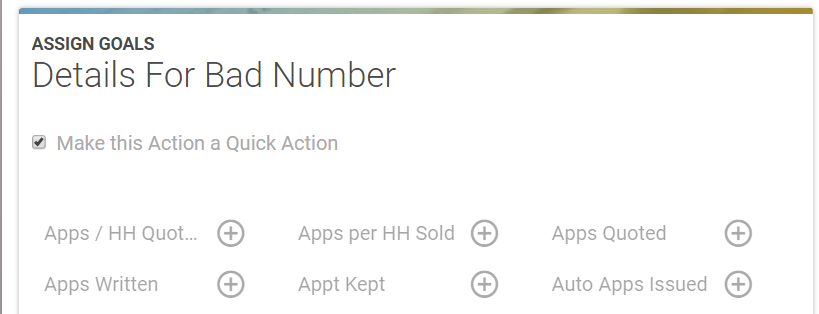
This will automatically save and the new quick action will show up on your dashboard.