

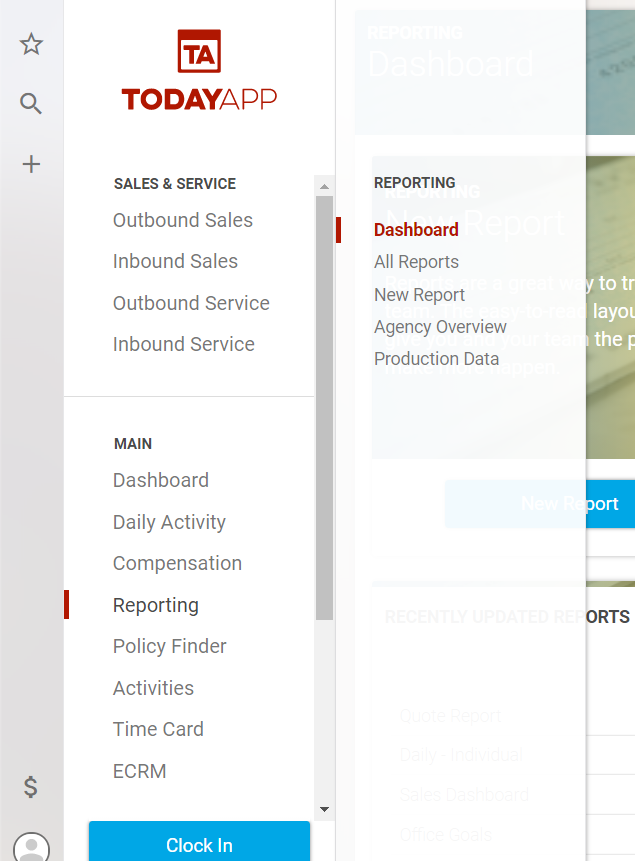
You can create a new dashboard report by going to Reporting>Dashboard from the main dropdown menu.
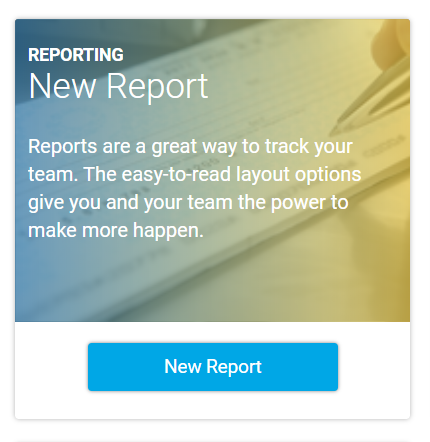
Select New Report.
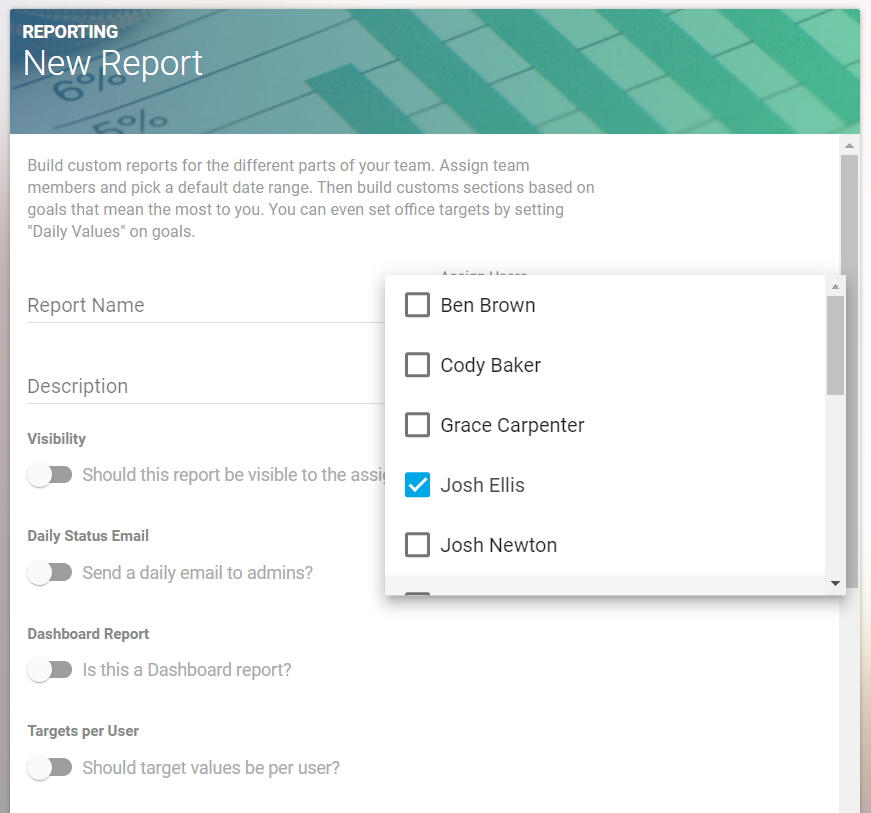
Name the report with the appropriate team member’s name, then select that team member from the dropdown menu.
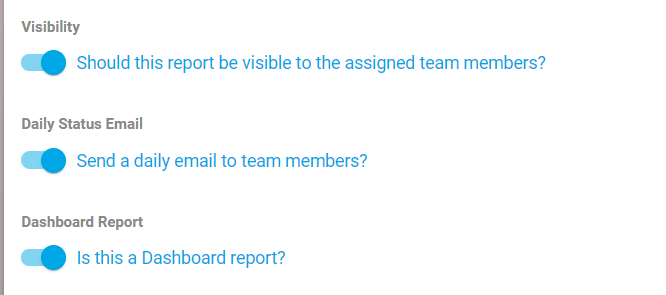
Add report description, and toggle the switch to make the report visible to the assigned team member. Then toggle the switch to make the report a dashboard report, and whether a daily email for the report will be sent out.
Next, select whether you want the report to track daily, weekly or monthly.
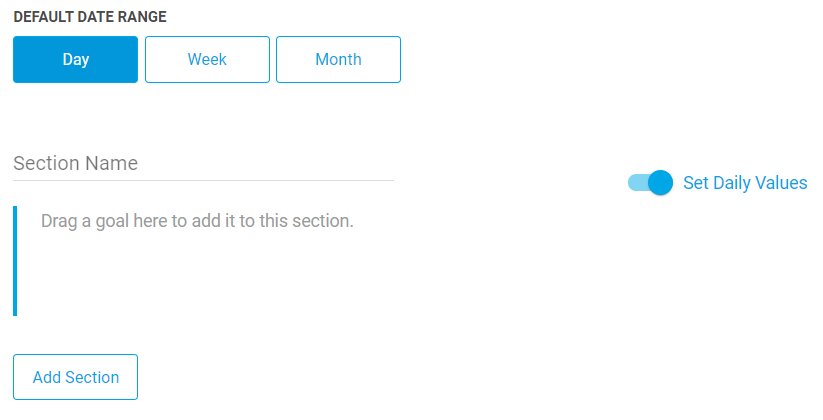
Then create a section name, and search for the goals you want to add to the section from the list on the right.
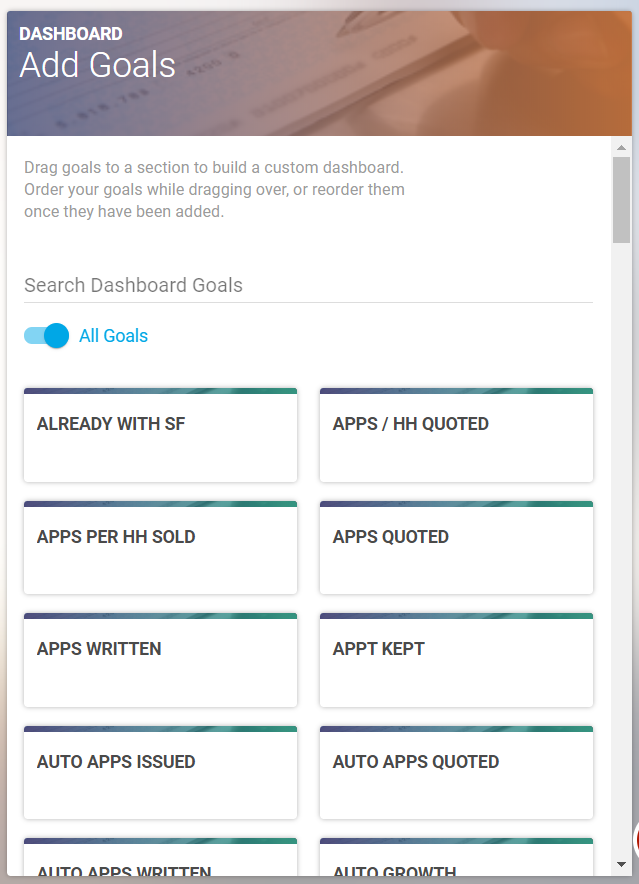
When you find the correct goal, drag and drop it into the report.
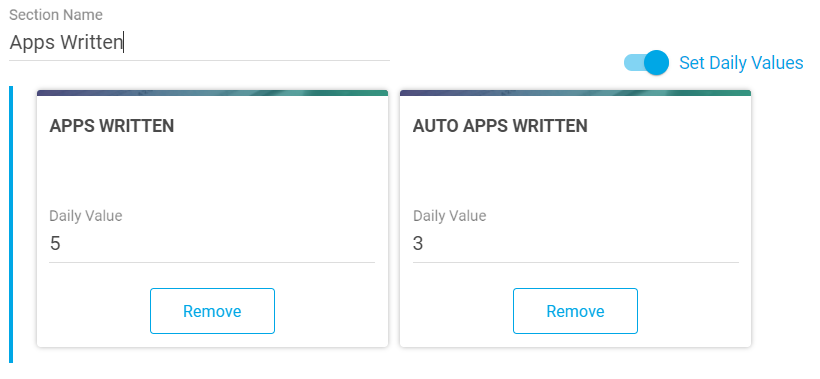
You can then set the values for each goal, then scroll to the bottom and hit “Save.”

Team members can view their dashboard by selecting Dashboard>My Dashboard on the left-hand side.